
If you’re serious about winning, your controller can’t be working against you. This guide shows you how to unlock its full potential with precise, actionable adjustments that improve responsiveness, efficiency, and security. Default settings often create hidden problems—input lag, oversized deadzones, and overlooked vulnerabilities—that cost you critical moments in competitive play. Here, you’ll learn proven techniques to fine-tune hardware, software, and in-game configurations for a measurable edge. Built on thousands of hours spent dissecting core mechanics in high-level arenas, these strategies deliver real performance gains—plus practical controller optimization tips you can apply immediately.
Hardware-Level Tuning: The Foundation of Flawless Control
At high ranks, hardware isn’t an accessory—it’s infrastructure. If your controller isn’t dialed in, no aim trainer or patch note breakdown will save you (harsh, but true).
Analog Stick Tension & Maintenance
Stick drift happens when dust or micro-debris interferes with potentiometer sensors (the components that translate movement into input data). A careful cleaning with compressed air and 90%+ isopropyl alcohol can restore accuracy. In dry climates like Nevada or Arizona, static-heavy dust buildup is especially common in tournament setups.
Tension rings—small resistance add-ons placed around the stick—add friction for steadier tracking in tactical shooters. Think of it like adding weight to a basketball before practice: control improves because overcorrection drops.
Trigger Stop Implementation
Trigger stops limit how far a trigger travels after actuation (the point where input registers). Shorter travel equals faster reset times—critical in shock-level combat systems where milliseconds decide trades. Some argue software hair triggers are enough. They’re helpful, but physical stops remove mechanical slack entirely. DIY alternative? A precisely cut polymer spacer (measured twice, installed once).
Grip and Ergonomics
Sweaty palms during LAN finals are real. Textured grips reduce micro-slippage, while rear paddles allow remapping so your thumbs never leave the sticks during slide-cancel chains. That’s elite-level efficiency—and one of the smartest controller optimization tips.
Wired vs. Wireless
Wireless tech is fast, but in crowded esports venues packed with signals, wired remains non-negotiable. Lower latency, zero interference. Stability wins championships.
Firmware and Software: The Digital Backbone of Your Controller

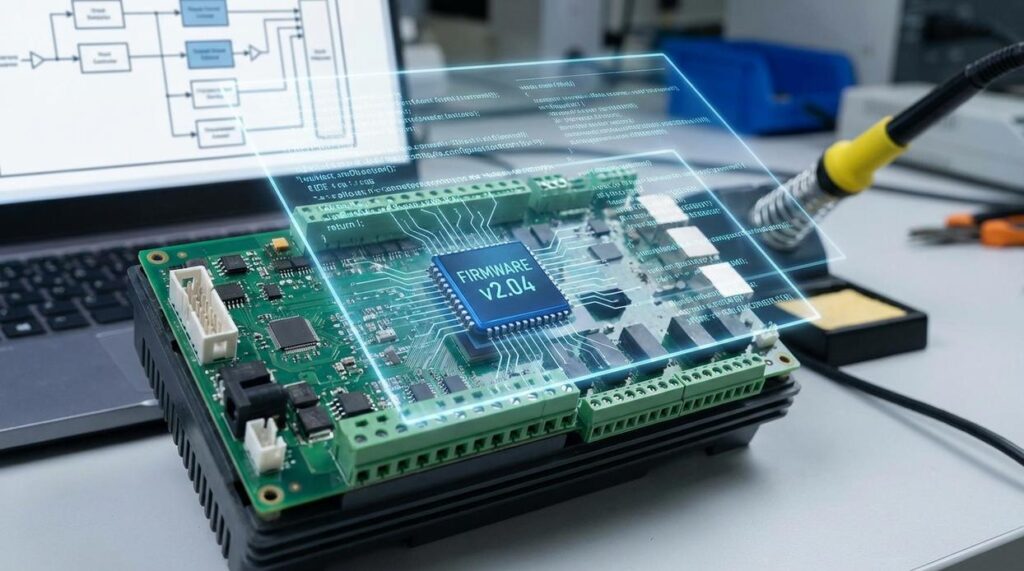
First things first: firmware isn’t just “background code.” It’s the low-level software embedded directly into your controller that tells it how to function. Think of it as the controller’s nervous system. In my opinion, sticking to official firmware updates is non-negotiable. Yes, third-party firmware can promise flashy features or exploit patches ahead of schedule. However, unofficial builds can introduce instability, security risks, or even permanent hardware damage (and no one wants to brick a $70 controller). Official updates exist to patch exploits and improve latency stability—benefits backed by platform manufacturers’ testing standards (Microsoft Support, Sony Support).
That said, companion software is where personalization shines. Tools like Xbox Accessories or DS4Windows let you remap buttons, tweak stick response curves (how quickly your input ramps up), and create per-game profiles. If you’re serious about performance, explore custom button mapping strategies for competitive play: https://marshock200.com/custom-button-mapping-strategies-for-competitive-play/.
Next, polling rate—the frequency your controller reports inputs to your PC—matters more than most players realize. A jump from 125Hz (8ms response window) to 1000Hz (1ms) can noticeably reduce input lag. Overclocking can help, but I recommend caution; stability beats theoretical gains every time.
Finally, for marathon sessions:
- Lower vibration intensity.
- Dim LED brightness.
- Disable unused wireless features.
Small tweaks extend battery life without sacrificing performance. Smart controller optimization tips aren’t flashy—but they win games.
In-Game Calibration: Mastering Deadzones and Sensitivity
Decoding Deadzones
A deadzone is the small area around your analog stick’s center where movement isn’t registered. It exists to prevent stick drift—that annoying phantom movement when you’re not touching the controller. Too small, and drift creeps in. Too large, and your aim feels sluggish (like steering a shopping cart with a stuck wheel).
Some players argue deadzones should be as low as possible for instant response. In theory, yes. In practice, hardware wear varies, and I’ll admit there’s no universal “perfect” number. Start low, increase gradually until drift disappears, and stop there.
Setting Your Inner vs. Outer Deadzone
- Inner Deadzone: Controls how soon movement begins.
- Outer Deadzone: Determines how quickly you hit maximum input.
Lower inner deadzones improve micro-adjustments. Outer deadzones should stay tight enough to ensure full turn speed without over-pushing the stick. I can’t promise a magic ratio—controllers differ—but testing in a practice range for five minutes reveals more than hours of guesswork.
Sensitivity vs. Aim Acceleration
Sensitivity is how fast your camera moves. Aim acceleration changes that speed based on how far or fast you push the stick. Some swear acceleration adds responsiveness; others say it ruins muscle memory. Honestly, both camps have a point.
Step-by-step:
- Disable acceleration.
- Set sensitivity mid-range.
- Track a moving target.
- Adjust gradually until tracking feels natural.
Consistency beats flash every time.
Response Curve Theory
Linear curves map stick movement directly to output—ideal for competitive shooters. Exponential curves ramp up gradually, better for cinematic action titles. Think chess precision vs. superhero reflexes.
There’s debate here, too. Preferences shift by genre and even mood. Use controller optimization tips sparingly—test, tweak, repeat until your inputs feel invisible.
Securing Your Setup
Bluetooth security protocols sound technical, but they simply govern how devices confirm “it’s really you.” When pairing, enable authentication prompts and avoid “open pairing” modes in public spaces. This reduces controller hijacking—when someone nearby connects without permission (yes, it happens at crowded tournaments).
For cloud profiles on Xbox, PlayStation, or Steam, turn on two-factor authentication (2FA). 2FA means a second proof of identity, like a phone code, beyond your password. One extra step blocks automated attacks.
For physical port safety, use USB ports and skip charging stations. Pro tip: keep firmware updated alongside your controller optimization tips.
By fine-tuning your controller settings for maximum accuracy, you not only enhance your gameplay but also set yourself up to make smarter in-game decisions, as explored in our article “Risk vs Reward: How to Make Smarter In-Game Decisions.
Your Next Steps to Flawless Controller Performance
You came here to eliminate the frustration holding your gameplay back—and now you have the complete toolkit to optimize your controller’s hardware, software, security, and in-game settings. No more blaming input lag, stick drift, or unstable connections for missed shots or lost matches. By applying these systematic tweaks, you’ve built a stronger foundation for consistent, responsive, and secure performance.
But knowledge only matters if you use it. Start tonight by calibrating your deadzones and feel the difference in your very next match. Thousands of competitive players trust proven controller optimization tips to sharpen their edge—now it’s your turn. Lock in, dial it up, and take control.